
Workforce Single Sign-On Overview
Single Sign-On (SSO) functionality on Social Pinpoint is a paid add-on that you can order through your customer success representative. It provides SSO functionality and works with a number of identity providers (IdPs). It is likely that the roll-out will need to be planned in concert with your IT department that manages your IdP.
A primary benefit, from an end-user perspective, of SSO, is that access to the platform will be through the staff login button with standard credentials and that accounts and groups will be managed through your IT department’s usual processes.
A second key benefit to using SSO is that you can globally grant all SSO users, or SSO user groups that SPP can inherit, access to private projects using the same mechanism as the custom user groups. This makes it very simple to create private engagements, such as staff surveys, that are available to all SSO users. Using SSO for private project access is detailed in the custom user groups page.
Managing SSO Groups
Single Sign-On (SSO) users and groups are managed by your IT team in your Identity Provider (IdP). In SPP, you can control how these SSO groups appear and are used by going to Settings > Users > SSO Groups.
To make SSO groups available in SPP, your IT team must first configure the SAML application in Microsoft Entra to include group claims. This allows group information to be sent from your IdP to SPP when users sign in.
You can find step-by-step instructions in Microsoft’s documentation here:
Add group claims to tokens for SAML applications using SSO configuration
Important Notes
- SSO Groups are available only when your SSO configuration is set up to pass group information from your IdP.
- This is an additional SSO configuration and is not enabled by default.
- Support for group passthrough depends on your Identity Provider.
- To enable this feature, please submit a request to the SPP Helpdesk.
On the SSO Groups settings page, you can add an SSO group with the original name matching the name in the SSO system, but give it a display name for use in SPP. E.g. a group called "Internal_SSO_Group_Interns" in your IdP could be mapped to a more meaningful or easier to use name, like "Interns", inside the platform.
🎯Key Actions
How does SSO implementation affect user login?
After SSO implementation, users will see a new 'Staff Login' button when they try to access the 'Login/Join' button.

This button for your staff members (with the same email domain) to access the platform. Additionally, a new user group called 'SSO Group' is automatically created, containing all existing and future staff who log in using SSO.
💡NOTE: Users with your company domain no longer need to sign up; their accounts are created automatically upon their first login.
Can both admins and participants use SSO to login?
Yes, anyone can log in via SSO as long as they have an account with the identity provider.
While it's unusual to use SSO for general community users, it can be beneficial for private sites catering to specific groups, such as university consultation sites or membership groups. In such cases, we can update the login form to prioritize SSO, making email and password registration unnecessary.
What about existing staff on the site? Can they switch to SSO?
Existing staff members will need to use the new 'Staff Login' button. They no longer need to use their old passwords, as SSO integrates with your company's user database for authentication.
Creating a Site User on an SSO-Enabled Site
When attempting to create a site user on a Single Sign-On (SSO) enabled site, you will encounter this error message:
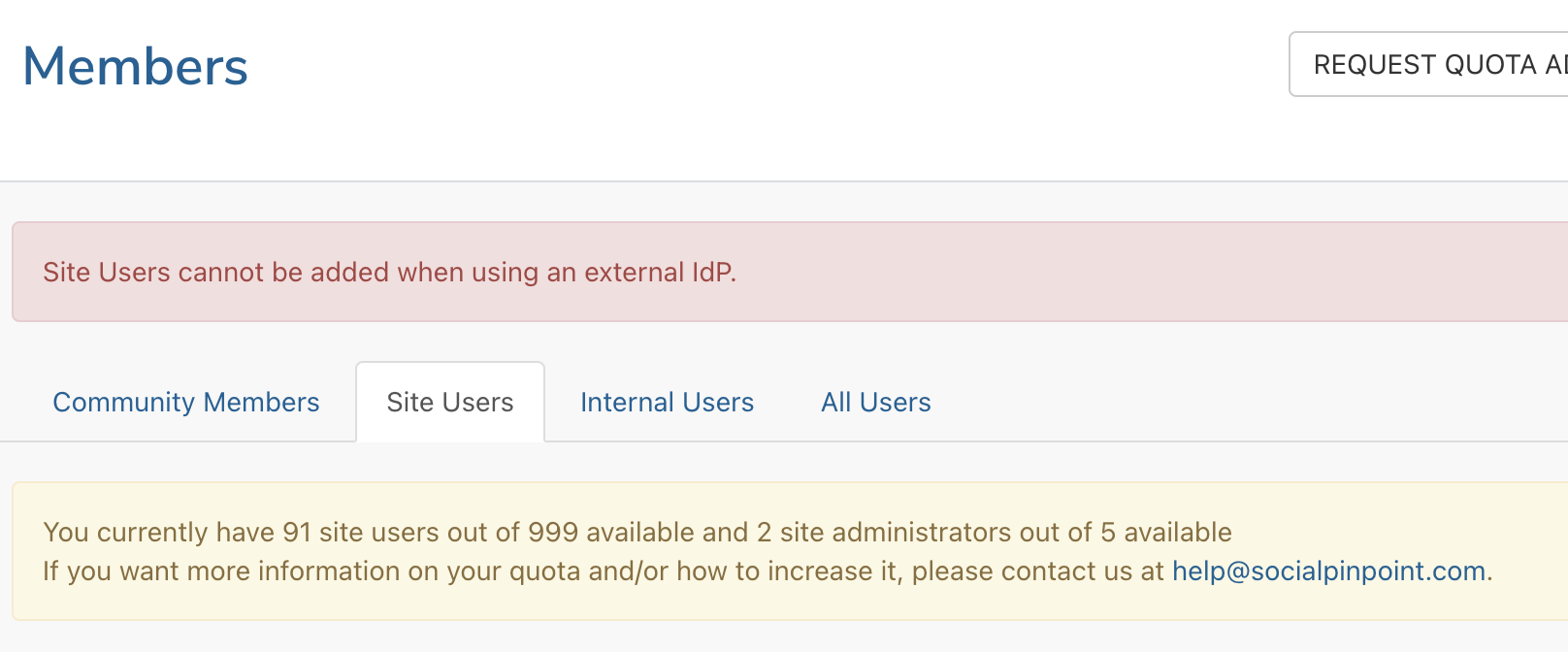
By default, when SSO is activate the platform disables the ability to create new site users via the Members Dashboard. This is to ensure that all Site Users and Admins authenticate using the SSO login instead of manually entering a username and password, which would otherwise bypass SSO security.
If you need to provide access to external consultants who will collaborate on your projects, there are two possible options to consider:
Option 1: Enable Site User Creation on your SPP Site.
We can adjust the platform settings to enable user creation on the Members Dashboard simply contact our Support Team at help@socialpinpoint.com. This will allow you to create site users for external consultants directly within the platform.
- 💡 NOTE: Existing users who have previously logged in via SSO will still be required to use the 'Staff Login' option when logging in.
Option 2: Add consultants to your Organization's SSO platform
Your organization's IT team can add external consultants as users to the SSO platform - setting up a temporary account for the consultant in their Identity Provider (IdP), access can easily be removed once the consultant's engagement ends.
- Many IdPs, such as Azure Active Directory, support "guest access" functionality, allowing external users to authenticate using their existing email accounts (e.g., Google, Microsoft, or LinkedIn).
For more details on how to configure guest access using Azure AD, refer to Microsoft's Guide on IdP here.